TankAware CMMS
User Guide v1.0

TankAware CMMS
Table of contents
Getting started
Companies and workspaces
Interface overview
User roles and permissions
Core features
Common daily tasks
FAQs
Table of contents
Getting started
Companies and workspaces
Interface overview
User roles and permissions
Core features
Common daily tasks
FAQs
TankAware CMMS User Guide
How to use TankAware CMMS to manage fuel storage operations
The TankAware CMMS User Guide is designed to help system owners, operators, and industry service providers confidently use TankAware CMMS to manage fuel storage operations. This guide provides clear, step-by-step instructions for completing inspections, managing sites and systems, tracking deficiencies, and maintaining accurate, auditable compliance records.
Whether you are setting up your organization for the first time or performing daily operational tasks, this guide supports consistent, compliant workflows and helps ensure critical information is captured correctly and accessible when needed.
About TankAware CMMS
This user guide is for TankAware Canada Inc.’s (TankAware) cloud-based based computerized maintenance management system (CMMS) purpose-built for fuel storage operations, TankAware CMMS. It brings inspections, maintenance, and records into one centralized, auditable system.
TankAware is a Canadian SaaS company with decades of real-world experience in fuel storage and environmental compliance, purpose-built to help organizations manage regulated infrastructure with confidence, clarity, and accountability.
Who this guide is for
This guide serves two main audiences:
System owners and operators:
Organizations that own petroleum storage sites - Facility operators managing day-to-day tank operations - Compliance managers ensuring regulatory adherence
Industry contacts (service providers):
Contractors performing maintenance and repairs - Service companies providing inspections - Equipment suppliers and other industry partners
How to use this guide
-
- New users: Start with Getting started and follow the First-time walkthrough
- Looking for a specific task: Review Common daily tasks
- Having trouble: Visit Troubleshooting and frequently asked questions (FAQs)
- Need a quick definition: Refer to Appendix A: Glossary
Tip: Use the table of contents to jump directly to any section.
Accessing TankAware CMMS
TankAware CMMS is accessed through your web browser. No software installation is required.
| Resource | URL | Purpose |
|---|---|---|
| Main Website | https://tankaware.com | Create accounts - Log in - Manage companies |
| Company Workspace | https://yourcompany.tankaware.com | Access your company’s dashboard - Manage sites, systems, and inspections - Perform daily operations |
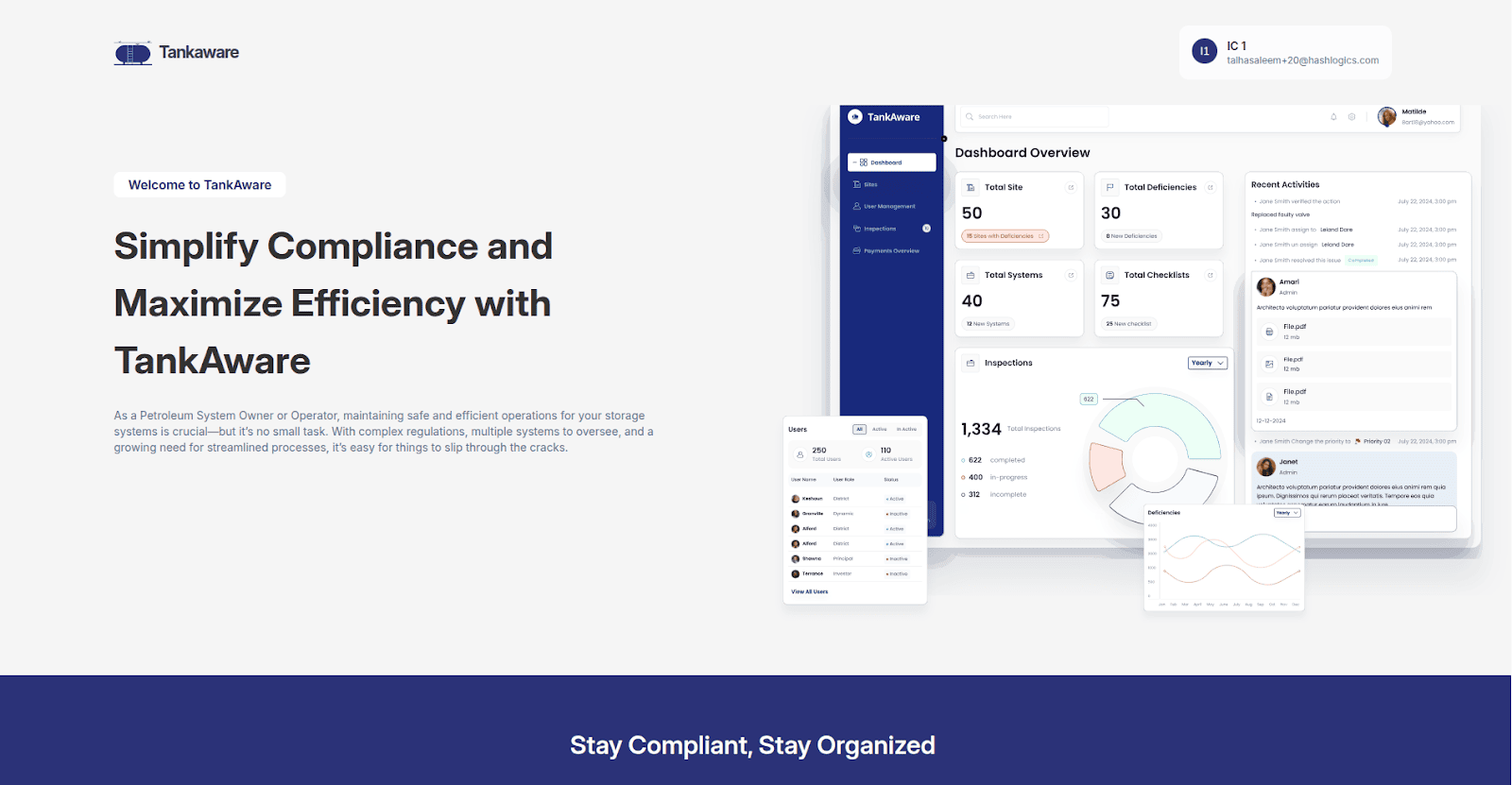
Note: Replace “yourcompany” with your actual company subdomain (assigned during company setup).
Creating your account
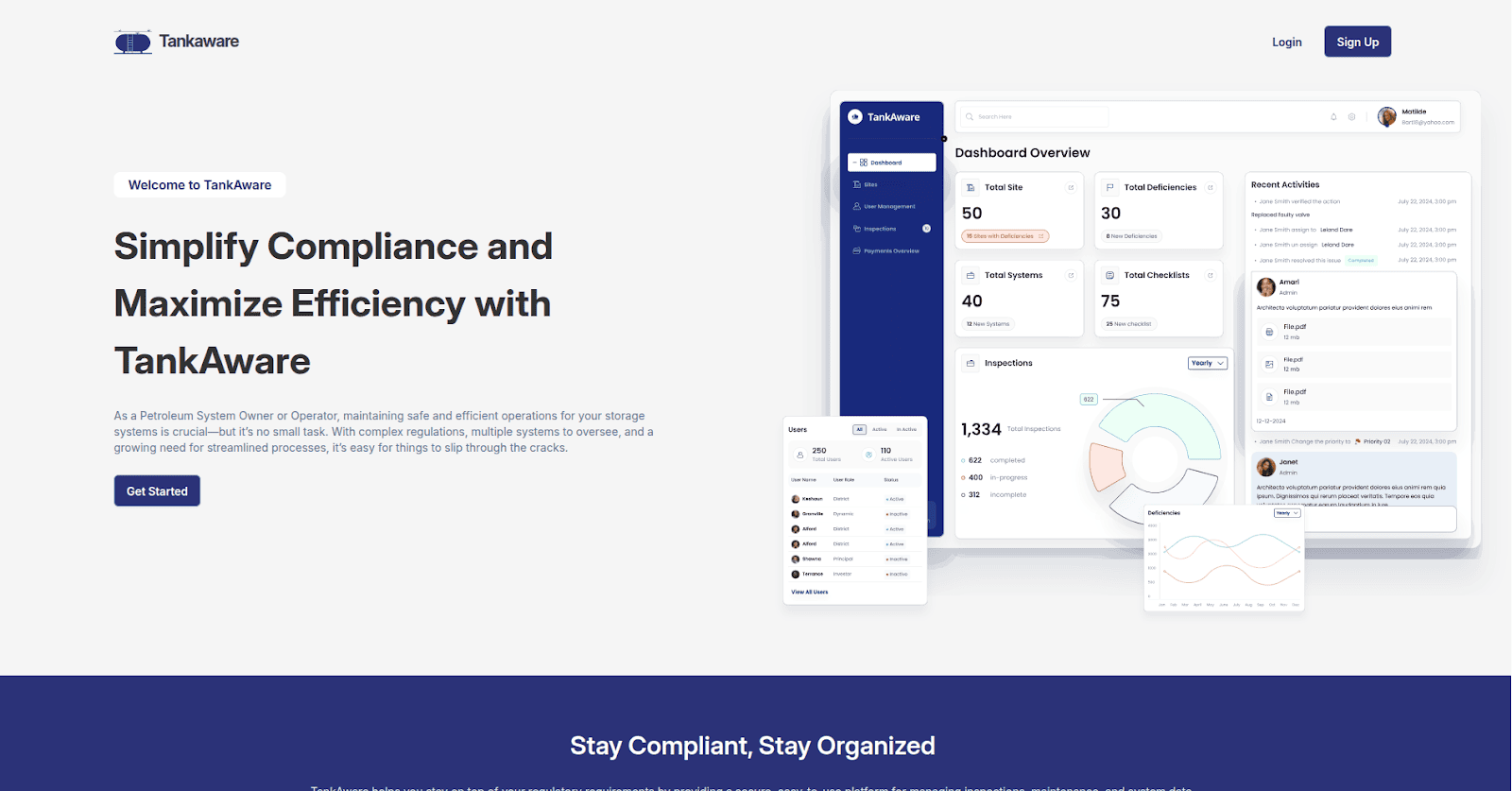
Step 1: Go to the signup page
- Visit https://tankaware.com
- Click Sign Up in the top-right corner
Step 2: Select your organization type
Choose one of the following:
| Option | Choose if you... |
|---|---|
| System Owners & Operators | Own or operate petroleum storage sites |
| Industry Contacts | Provide services (contractors, suppliers, engineers, etc.) |
Click Next after selecting.
Step 3: Complete the registration form
Fill in the following information:
- Full Name: Your complete name
- Email Address: Use a valid email you can access
- Phone Number: Contact number
- Address: Street address, city, province, postal code
- Password: Must include:
- 8-32 characters
- At least one
- Uppercase letter
- At least one lowercase letter
- At least one number
- Confirm Password: Re-enter your password
Step 4: Accept agreements
Check the box for Privacy Statement (required) – Optionally check Newsletter to receive updates
Click Sign Up to create your account.
Verifying your email
After signing up, you must verify your email address.
- Check your inbox for an email from TankAware
- Click the verification link in the email
- You’ll see a confirmation message: “Your account is verified”
- Click Continue to proceed
Email not arriving:
Check your spam or junk folder - Wait a few minutes and click
Resend email:
Ensure you entered the correct email address
Note: You cannot access your company workspace until your email is verified.
Logging in
Using password:
- Go to https://tankaware.com
- Click Log in
- Enter your email and password
- Click Sign In
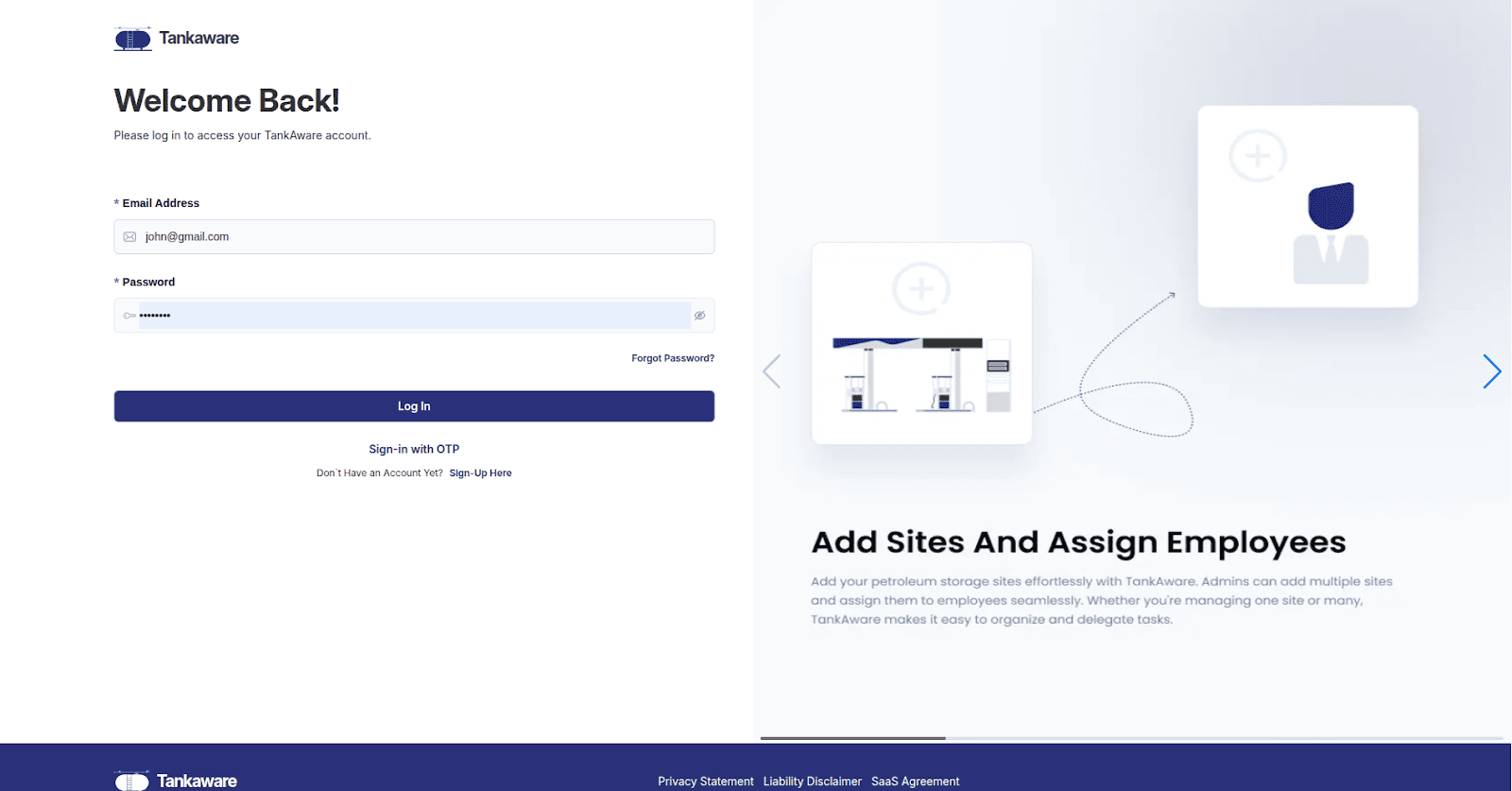
Using one-time password (OTP):
- Click Log in
- Switch to OTP sign-in method
- Enter your email
- Check your email for a 6-digit code
- Enter the code to log in
Screenshot placeholder:
Login screen with OTP option shown
Password recovery
If you forget your password:
- Go to the login page
- Click Forgot Password
- Enter your email address
- Click Submit
- Check your email for a reset link
- Click the link and create a new password
- Log in with your new password
Note: Reset links expire after a limited time. If your link doesn’t work, request a new one.
Understanding company workspaces
TankAware CMMS organizes work by company. Each company has its own workspace with:
- A unique web address (subdomain)
- Its own users and roles
- Separate sites and systems
- Independent data and reports
For example:
If your company is called “Northern Fuels,” your workspace might be at https://northernfuels.tankaware.com
Benefits of this structure:
Your data is private to your organization - Multiple people can collaborate within the same company - You can be part of multiple companies (for example, a contractor working with several clients)
Creating a new company
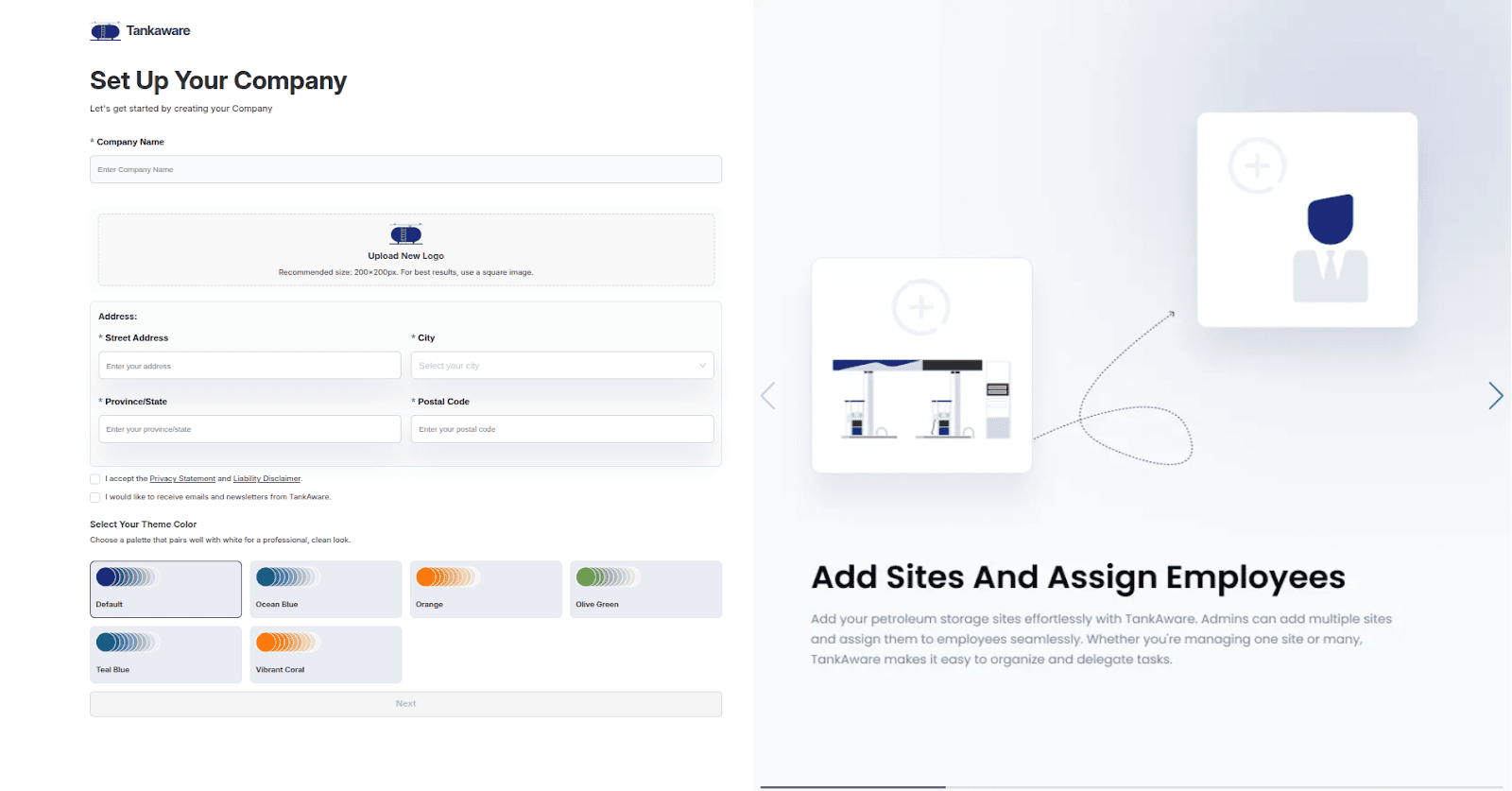
After verifying your email, you’ll be guided through company creation.
For system owners and operators
Step 1: Company Information
- Company Name: Your organization’s name
- Company Logo: Upload a square image (200 x 200 px recommended)
- Address: Street, city, province, postal code
Step 2: Choose a Theme
Select a color theme for your workspace - Click the eye icon to preview how it looks
Step 3: Accept Agreements
- Privacy Statement (required)
- Liability Disclaimer (required)
- Newsletter (optional)
Step 4: Emergency Information
Add at least one emergency contact (name and phone) – Enter emergency procedures in the text editor
Step 5: Subscription
Complete payment to activate your company
For industry contacts (service providers)
Step 1: Service Categories
Select all that apply:
- Construction
- Petroleum Service and Maintenance
- Service Providers
- Equipment Suppliers
- Insurance Providers
- Oil companies
- Regulators
- Others (specify)
Step 2: Company Information
Company Name and Logo – Address – Website URL – Emergency Contact Phone – Description of services – After-hours policy
Step 3: Theme and Agreements
Same as System Owners
Step 4: Upload Documents
Upload at least one document for each category:
- General Documents
- Supporting Documents
- License/Certificate
Step 5: Subscription
Complete payment to activate
Selecting a company
If you belong to multiple companies:
- After logging in, you’ll see the Select Company screen
- Click on the company you want to access
- You’ll be redirected to that company’s workspace
Company card information:
- Company logo and name
- Number of members
- Number of sites and systems (for owners)
- Number of work orders (for industry contacts)
- Status indicator (green = active, orange = subscription issue)
To create another company:
Scroll down and click Create New Company
To switch companies:
Click your profile icon – Select Select Company
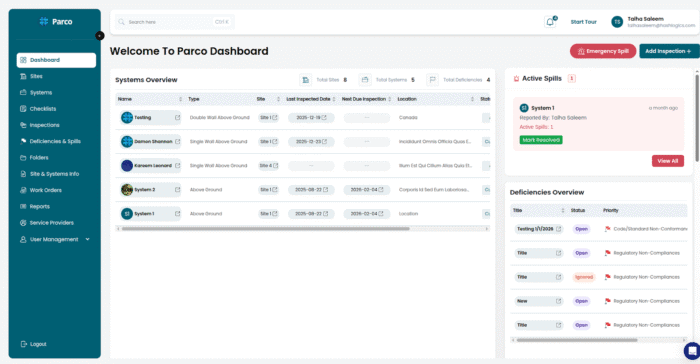
Navigation for system owners
When you log into your company workspace, you’ll see the Admin Dashboard.
Main menu items:
Dashboard
Overview of your operations
Sites
Manage physical locations
Systems
Manage tank systems
Checklists
Create inspection templates
Inspections
Schedule and track inspections
Deficiencies & Spills
Track issues and spills
Folders
Organize document categories
Site & Systems Info
Manage documents
Work Orders
Work Orders
Reports
Generate compliance reports
Service Providers
Find and manage contractors
User Management
Manage users and roles
Site dashboard:
Click on any site to access its dedicated dashboard with: Site-specific systems - Work orders for that site - Observations - Checklists and inspections - Deficiencies - Reports - File manager
Screenshot placeholder:
Admin sidebar navigation
Navigation for industry contacts
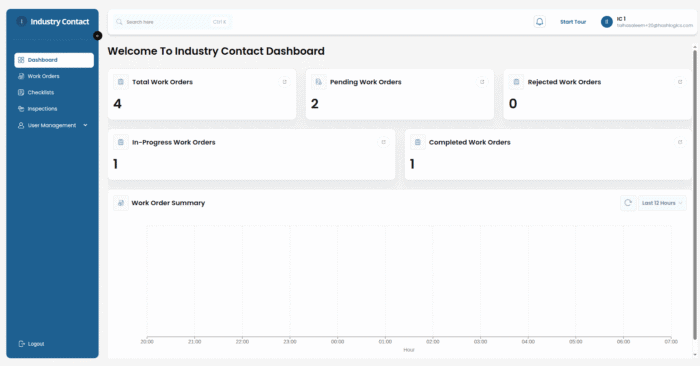
Industry contacts see a streamlined interface focused on service work.
Main menu items:
Dashboard
Work order statistics
Work Orders
View and manage assignments
Checklists
Access inspection templates
Inspections
Perform assigned inspections
User Management
Manage your team
Work order segments:
- All – Every work order
- Pending – Awaiting your response
- Accepted – Work in progress
- Rejected – Declined assignments
- Completed – Finished work
Screenshot placeholder:
Industry contact dashboard
Common interface elements
Views:
Most list screens offer two display options:
- List View – Table format with detailed columns
- Grid View – Card format for visual browsing
Click the view toggle button to switch between them.
Search and filters:
- Use the search box to find items by name or keyword
- Click Filters to narrow results by status, date, or other criteria
- Click Clear Filters to reset
Pagination:
Large lists are divided into pages:
- Use Previous/Next arrows to navigate
- Change page size (10, 20, 50, or 100 items)
- Jump to a specific page number
Action menus:
Each item typically has actions available:
- View – See details in a side panel
- Edit – Modify the item
- Delete – Remove the item (with confirmation)
Status indicators:
Color-coded badges show item status:
| Color | Status |
|---|---|
| Green | Active, resolved, or completed |
| Yellow/Orange | Pending or in progress |
| Red | Critical, overdue, or requires attention |
Dashboard overview
Admin dashboard (system owners)
Your dashboard shows:
- Welcome message with your company name
Quick Action buttons:
- Emergency Spill – Report a spill immediately
- Add Inspection – Create a new inspection
Statistics cards:
- Total systems
- Spill reports
- Deficiency count
- User activity
Charts and graphs:
- Deficiency trends over time
- Inspection completion rates
- Location map showing all your sites
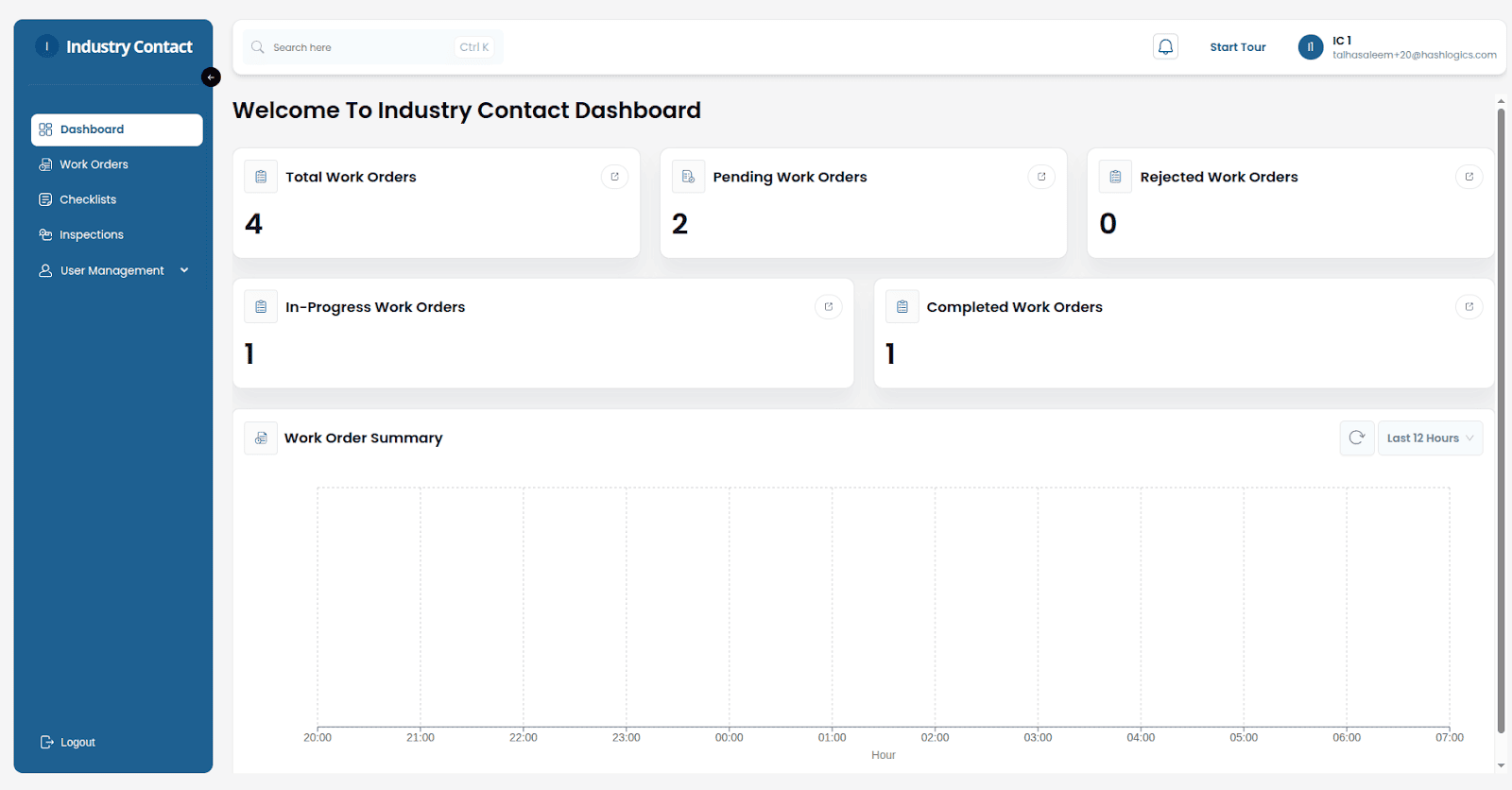
Industry contact dashboard:
Your dashboard displays:
- Work order statistics: – Total work orders – Pending – In progress – Completed – Rejected
- Trend chart showing work order volume over time
- Quick links to each work order category
Screenshot placeholder:
Admin dashboard with statistics
Understanding roles
Admin dashboard (system owners)
A role determines what a user can see and do in TankAware CMMS. Roles control:
- Which menu items appear
- What data can be viewed
- What actions can be performed (create, edit, delete)
- Access to the admin dashboard
Key concepts:
- Company Owner: Has full access to everything. Cannot be restricted.
- Role Assignment: Each user is assigned one role.
- Custom Roles: You can create additional roles beyond the defaults.
Default roles explained
TankAware CMMS comes with built-in roles:
Admin
Full access to all features and data.
What they can do
- Manage all users
- Create, edit, delete sites
- Create, edit, delete systems
- Create and manage checklists
- Create and view all inspections
- Manage deficiencies
- Create and manage work orders
- Generate reports
- Access admin dashboard
- Create and edit roles
Site manager
Mid-level access focused on operational oversight.
| What they can do | What they cannot do |
|---|---|
| Create and manage sites | Manage other users |
| Create and manage systems | Create or edit roles |
| Create and view inspections | |
| Manage checklists | |
| Handle deficiencies | |
| Manage work orders | |
| Access admin dashboard |
Best for: Site supervisors, regional managers
Employee / contractor
Limited access for performing inspections.
| What they can do | What they cannot do |
|---|---|
| View sites (read-only) | Create or modify sites |
| View systems (read-only) | Create or modify systems |
| Create inspections | View all inspections |
| View assigned inspections | Manage checklists |
| Perform inspections | Access admin dashboard |
| Delete own inspections |
Best for: Field inspectors, technicians, contractors
Service provider
Limited access for work-related activities
| What they can do | What they cannot do |
|---|---|
| View sites (read-only) | Create anything |
| View systems (read-only) | Delete items |
| View deficiencies | Access admin dashboard |
| Update/fix deficiencies | |
| Update work orders | |
| Manage documents |
Best for: External repair technicians, maintenance crews
Creating custom roles
If the default roles don’t fit your needs, create your own.
To create a custom role:
- Go to User Management → Roles tab
- Click Create Role
- Enter:
- Role Name – for example, “Inspector Lead”
- Description – What this role is for
- Set permissions for each entity (see 5.4 Permission categories)
- Click Save
To edit a role:
- Find the role in the list
- Click Edit
- Modify permissions as needed
- Click Save
Note: You cannot modify or delete the Company Owner’s permissions.
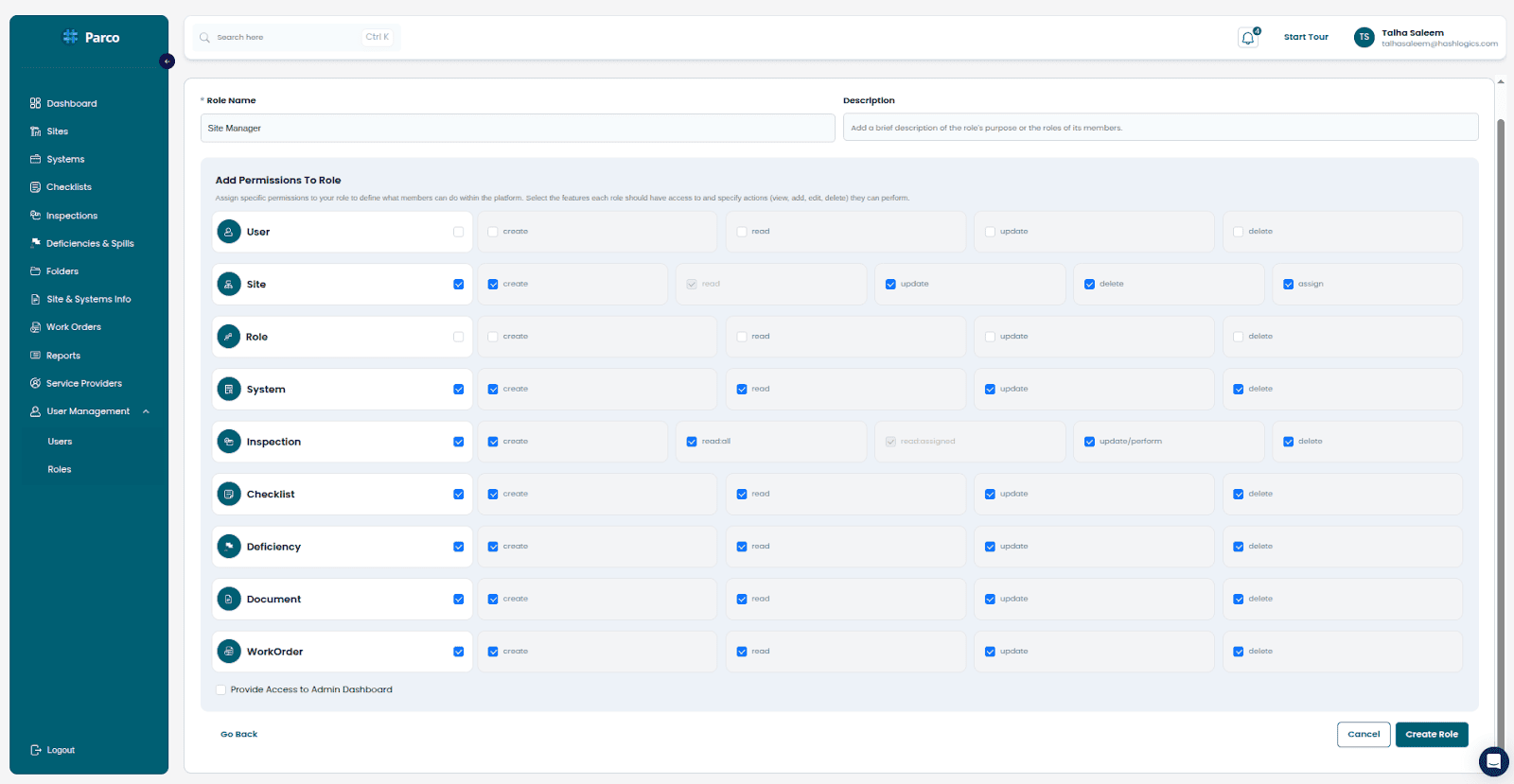
Permission categories
When creating or editing a role, you control permissions for:
| Entity | Available Permissions |
|---|---|
| Users | Create, Read, Update, Delete |
| Sites | Read |
| Systems | Read |
| Inspections | Create, Read All, Read Assigned, Update, Delete |
| Checklists | Create, Read, Update, Delete |
| Deficiencies | Create, Read, Update, Delete |
| Work Orders | Create, Read, Update, Delete |
| Roles | Create, Read, Update, Delete |
| Documents | Create, Read, Update, Delete |
Special permissions:
- Admin Dashboard Access: Can view the administrative dashboard
- Read All Inspections: See every inspection, not just assigned ones
Screenshot placeholder:
Role permission matrix
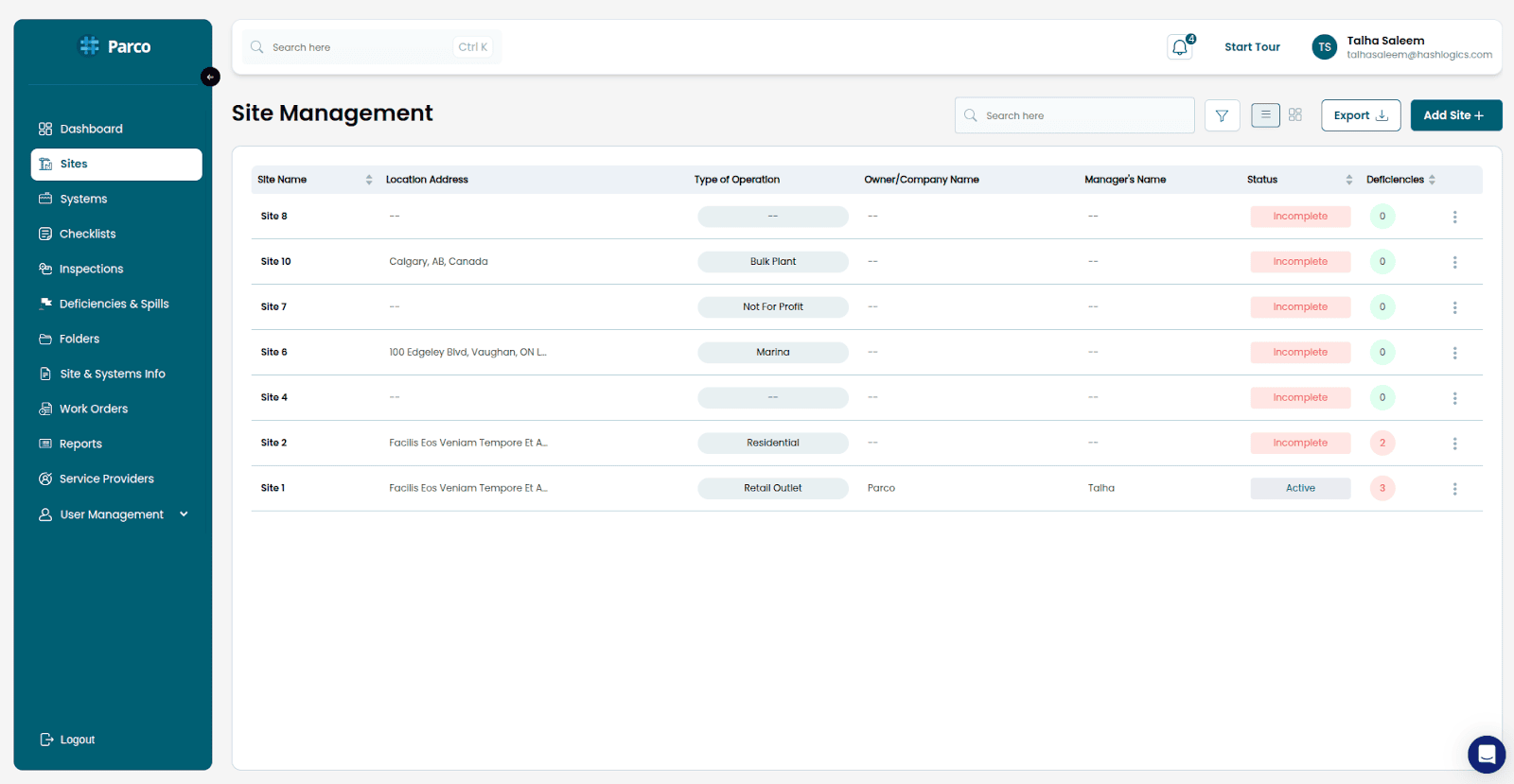
Sites management
A site represents a physical location where you have petroleum storage equipment
Viewing sites:
- Click Sites in the menu
- Browse the list or grid view
- Use search to find specific sites
- Filter by:
- Deficient status (sites with open issues)
Creating a site:
- Click Add Site
- Complete the forms:
- Site Information: Name, address, coordinates, contact
- Tank Ownership: Who owns the tanks
- System Operator: Who operates the site
- Land Owner: Property owner details
- Service Provider: Assigned contractors
- Operation Type: Type of facility
- Click Save
Editing a site:
- Find the site in the list
- Click the Edit action
- Make your changes
- Click Save
Deleting a site:
Warning: Deleting a site also removes all associated systems, checklists, inspections, and deficiencies.
- Find the site
- Click Delete
- Read the warning carefully
- Confirm deletion
Site details:
Click on any site to see: All systems at that location - Recent activity - Quick access to site-specific features
Screenshot placeholder:
Sites list view
System management
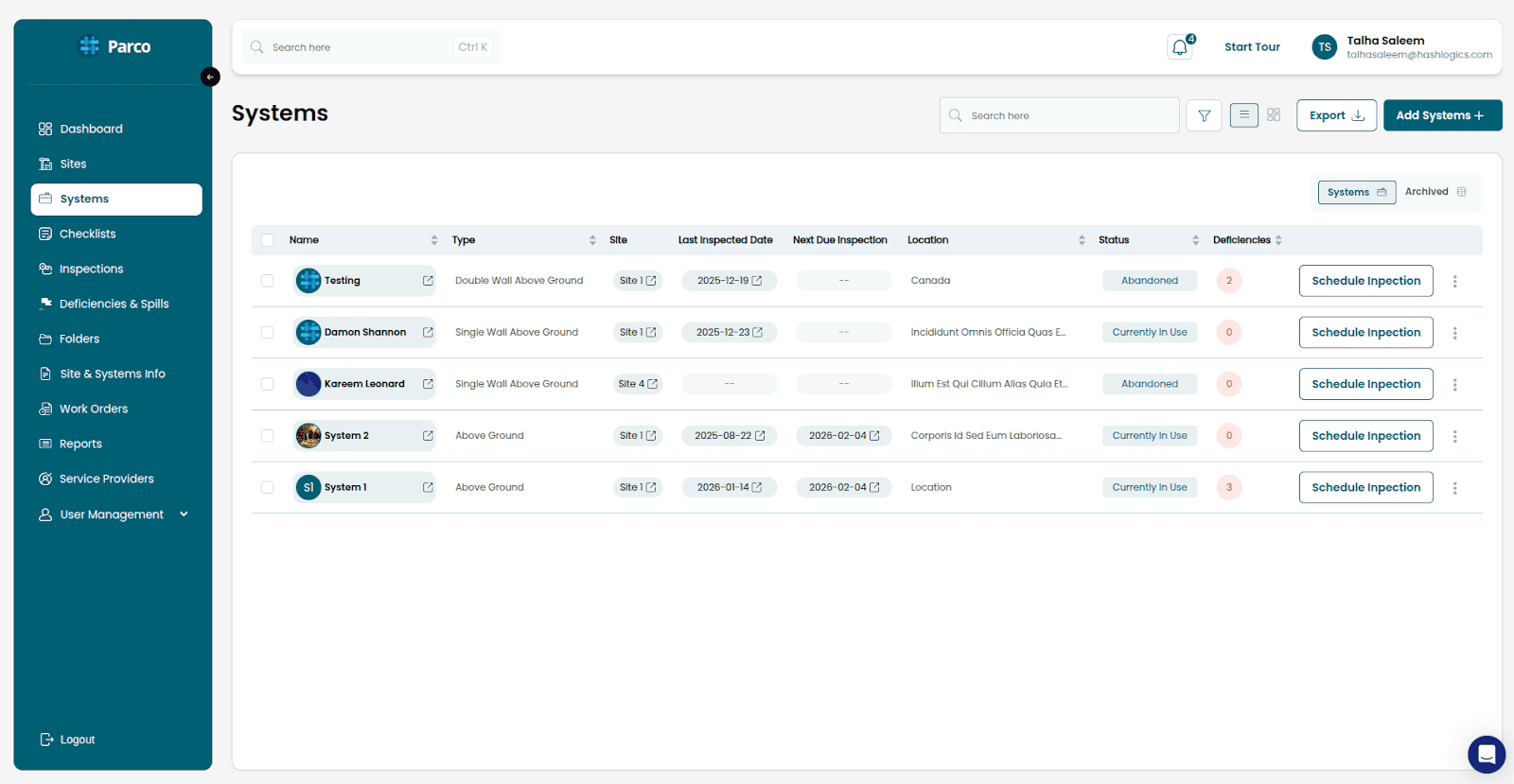
A system is an individual tank or storage unit at a site.
Viewing systems:
- Click Systems in the menu
- View all systems or filter by:
- Deficiency status
- System type
- Active or Archived status
Tabs:
- Active – Systems currently in operation
- Archived – Systems no longer in use
Creating a system:
- Click Add System
- Select the site
- Enter system details:
- System name
- Type (for example, underground tank, above-ground tank)
- Registration number
- Capacity and specifications
- Click Save
System actions:
- View Details – See full system information
- Edit – Modify system details
- Delete – Remove system (with confirmation)
- Archive/Restore – Move to or from archived status
- Report Emergency Spill – Quick spill reporting
Bulk operations:
- Check the boxes next to multiple systems
- Click the bulk action button
- Choose an action (for example, report emergency for all selected)
Screenshot placeholder:
System List view
Checklists
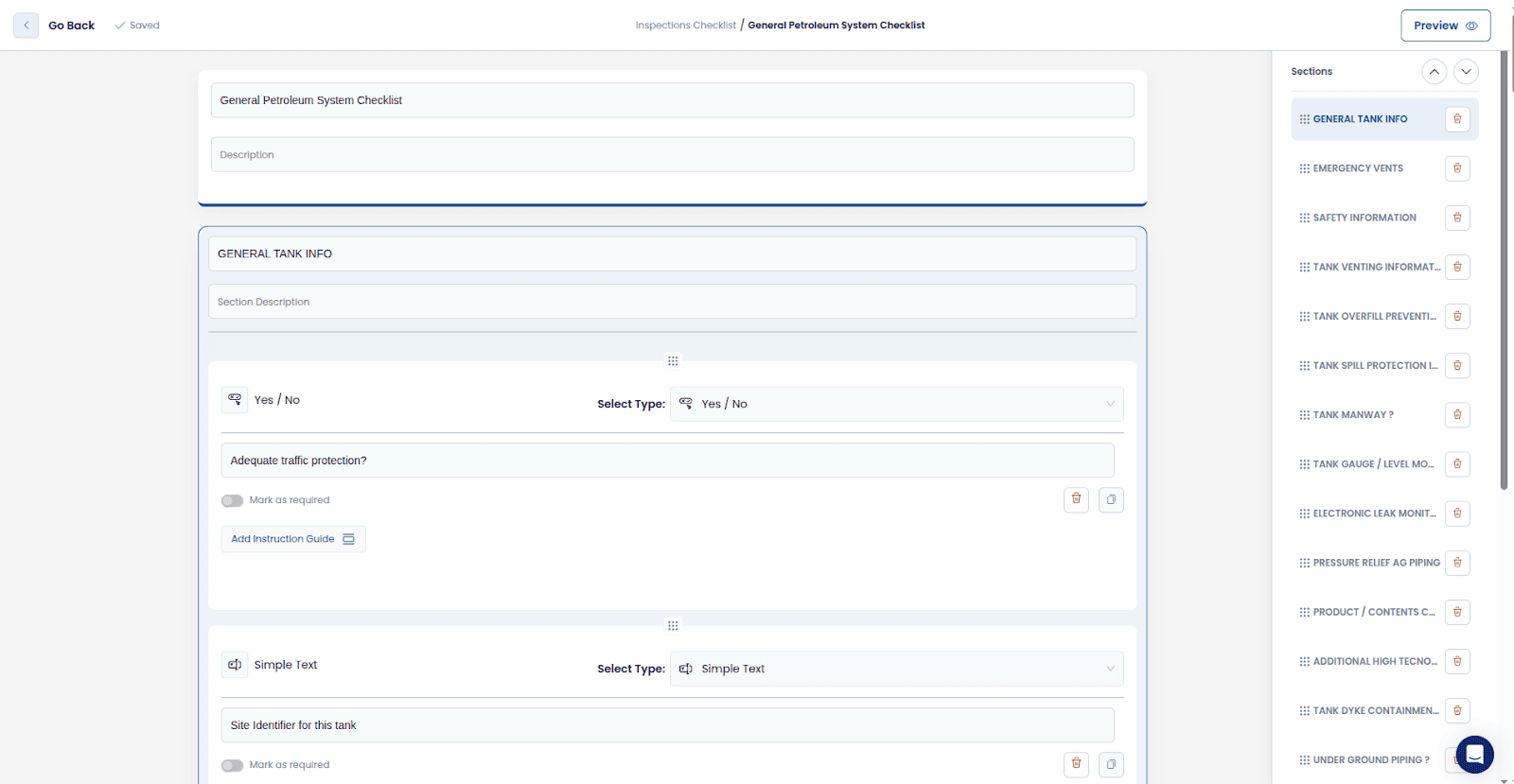
A checklist is a template of questions used during inspections.
Viewing checklists:
- Click Checklists in the menu
- View active or disabled checklists
- Search by name
Creating a checklist:
- Click Create Checklist
- Enter:
- Checklist Name – for example, “Monthly Tank Inspection”
- Description – What this checklist covers
- Click Add Section to create groupings (for example, “Visual Check,” “Equipment Test”)
- Within each section, add questions:
| Type | Use For |
|---|---|
| Text | Short answers |
| Text Area | Longer descriptions |
| Number | Measurements or counts |
| Date | Date entries |
| Dropdown | Single choice from a list |
| Multi-select | Multiple choices from a lis |
| Yes/No | Simple boolean responses |
- For each question:
- Enter the question text
- Mark as required (if needed)
- Add answer options (for dropdowns/multi-select)
- Set up conditional logic (show only if another question has a specific answer)
- Click Save
Managing checklists:
- Edit – Modify questions and sections
- Delete – Remove the checklist
- Take Snapshot – Create a frozen copy for record-keeping
- Enable/Disable – Control availability
Screenshot placeholder:
Checklist builder
Inspections
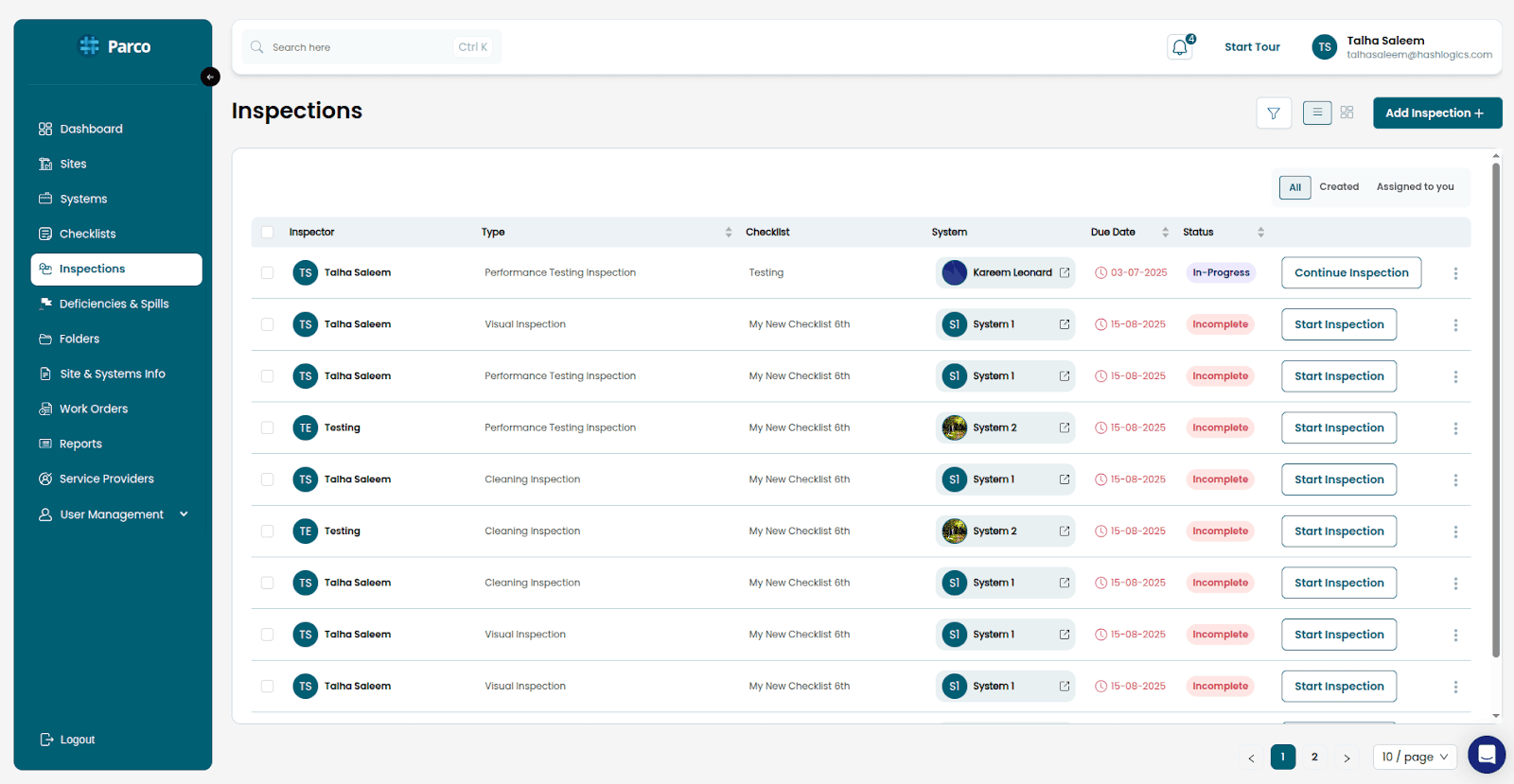
An inspection is a scheduled evaluation of a system using a checklist.
Viewing inspections:
- Click Inspections in the menu
- Use segments to filter:
- All – Every inspection (if you have permission)
- Assigned To Me – Only your inspections
Creating an inspection:
- Click Add Inspection
- Select:
- Checklist – Which template to use
- Site and System – What to inspect
- Assigned User – Who will perform it
- Schedule:
- One-time (single occurrence)
- Recurring (daily, weekly, monthly, etc.)
- Due Date – When it must be completed
- Click Save
Performing an inspection:
- Find your inspection in the list
- Click Start or Continue
- Answer each question in the checklist
- Upload photos if needed
- Click Submit when complete
Inspection statuses
| Status | Meaning |
|---|---|
| Active | Scheduled but not started |
| In Progress | Started but not complete |
| Completed | Finished and submitted |
| Incomplete | Partially done, not submitted |
After an Inspection:
Any answers flagged as deficient automatically create deficiency records - The inspection is marked complete - Reports become available
Screenshot placeholder:
Inspection in progress
Performing an inspection
Time needed: 5-30 minutes (depending on checklist length)
- Log into your company workspace
- Go to Inspections
- Find your assigned inspection (look for “Assigned To Me”)
- Click Start Inspection
- For each question:
- Read the question carefully
- Select or enter your answer
- Upload photos if required or helpful
- Add notes for any concerns
- After answering all questions, click Submit
- Review the summary
- Confirm submission
Note: Save progress frequently on long inspections - Take clear photos that show the entire area - Be specific in notes about any issues found
Recording a delivery
Time needed: 2-3 minutes
- Go to the site dashboard for the delivery location
- Click System Observations
- Click Add Observation
- Select Delivery
- Enter:
- Before delivery tank level
- Delivery amount
- After delivery tank level
- Delivery company name
- Contact information
- Upload delivery ticket photo
- Click Save
Alternative for external delivery drivers:
- Access the public system page (via QR code or link)
- Select Report Delivery
- Enter the same information
- Submit without needing to log in
Reporting a deficiency
Time needed: 3-5 minutes
- Go to Deficiencies & Spills
- Click Create Deficiency
- Select the affected system
- Enter:
- What the problem is
- Where exactly it’s located
- How serious it is (Critical, Concern, Satisfactory)
- What you recommend doing about it
- Upload photos showing the issue
- Assign to someone who can fix it
- Click Save
Reporting an emergency spill
Time needed: 3-5 minutes
Verifying your email
After signing up, you must verify your email address.
- Check your inbox for an email from TankAware
- Click the verification link in the email
- You’ll see a confirmation message: “Your account is verified”
- Click Continue to proceed
Email not arriving:
Check your spam or junk folder - Wait a few minutes and click
Resend email:
Ensure you entered the correct email address
Note: You cannot access your company workspace until your email is verified.
Priority:
Always follow your emergency procedures first. Report in TankAware CMMS when safe to do so.
- From the dashboard, click Emergency Spill
- Select the system(s) involved
- Enter:
- Description of what happened
- Approximate amount spilled
- Time it occurred
- Current containment status
- Enter emergency contact phone number
- Upload photos
- Click Submit immediately
The system will:
Log the spill report - Notify appropriate personnel - Create a record for compliance
Managing work orders
For system owners
Creating a work order:
- Go to Work Orders
- Click Create Work Order
- Select site and system
- Choose a service provider
- Describe the work needed
- Set a deadline
- Click Send
Tracking a work order:
- Go to Work Orders
- Find the order
- Check its status:
- Pending = Awaiting provider response
- In Progress = Work underway
- Completed = Work finished
For industry contacts
Accepting work:
- Go to Work Orders
- Check Pending segment
- Click on a work order to review
- Click Accept to take the job
Completing work:
- Perform the requested work
- Return to the work order
- Add completion notes
- Upload documentation/photos
- Click Complete
Rejecting work:
- Click Reject on the work order
- Provide a reason (optional)
- The requester will be notified
Generating reports
Time needed: 2-3 minutes (plus processing time)
- Go to Reports
- Click Create Report
- Select:
- Report type (System Summary, Inspections, etc.)
- Date range
- Which sites/systems to include
- Apply any filters:
- Status
- Priority level
- Click Generate
- Wait for processing (page auto-refreshes)
- When complete, click Download
- Open the Microsoft Excel file on your computer
Questions
Can I be part of multiple companies?
Yes. Use the Select Company option to switch between them.
How do I change my company’s name or logo?
Go to Settings → Organization Settings (owner only).
Can I restore a deleted site or system?
No. Deletion is permanent. Systems can be archived instead.
Why can’t I see all inspections?
You may only have permission to see inspections assigned to you. Ask an admin for “Read All” permission.
How do I print an inspection report?
Generate a report, download the Microsoft Excel file, and print from there.
What happens when I archive a system?
It moves to the “Archived” tab. Data is preserved but it won’t appear in active lists.
How do recurring inspections work?
TankAware CMMS automatically creates new inspections based on your schedule (daily, weekly, monthly, etc.).
Can I customize the checklist questions?
No. Deletion is permanent. Systems can be archived instead.
How do I get help?
Use the in-app help or contact your company administrator. For technical issues, visit Support.
Support
Explore TankAware CMMS solutions
Explore TankAware CMMS
Explore TankAware CMMS solutions
About TankAware
View information about TankAware
Contact TankAware
Start a conversation
Company subscription
TankAware CMMS operates on an annual subscription model.
What’s included:
- 1 system
- 4 users
- All platform features
Managing your subscription:
- Go to Settings → Billing
- View current plan and usage
- Access billing history
- Download invoices
Note: If your subscription expires, your company will be marked as “Subscription Suspended.” Contact support or renew to restore access.